

- Using API
Here’s how to implement 2FA using Plivo APIs.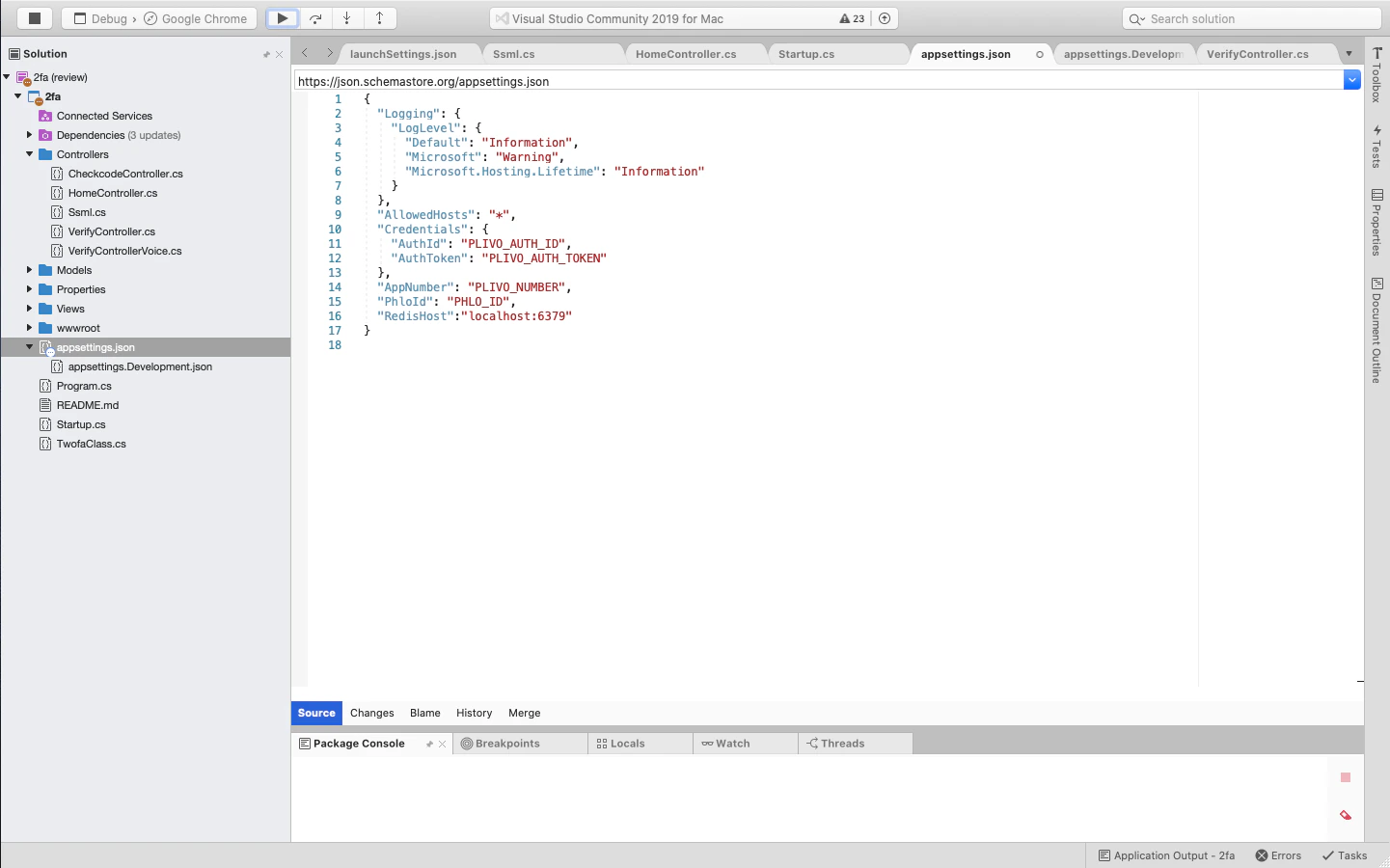
Prerequisites
To get started, you need a Plivo account — sign up with your work email address if you don’t have one already. If this is your first time using Plivo APIs, follow our instructions to set up a .NET development environment.Set up the demo application locally
- Clone the 2FA demo repository from GitHub.
- Change your working directory to 2fa-dotnet-demo.
- Open the 2fa folder in Visual Studio.
-
Edit appsettings.json. Replace the auth placeholders with your authentication credentials from the Plivo console. Replace the phone number placeholder with an actual phone number in E.164 format (for example, +12025551234). Replace the PHLO ID with
null.
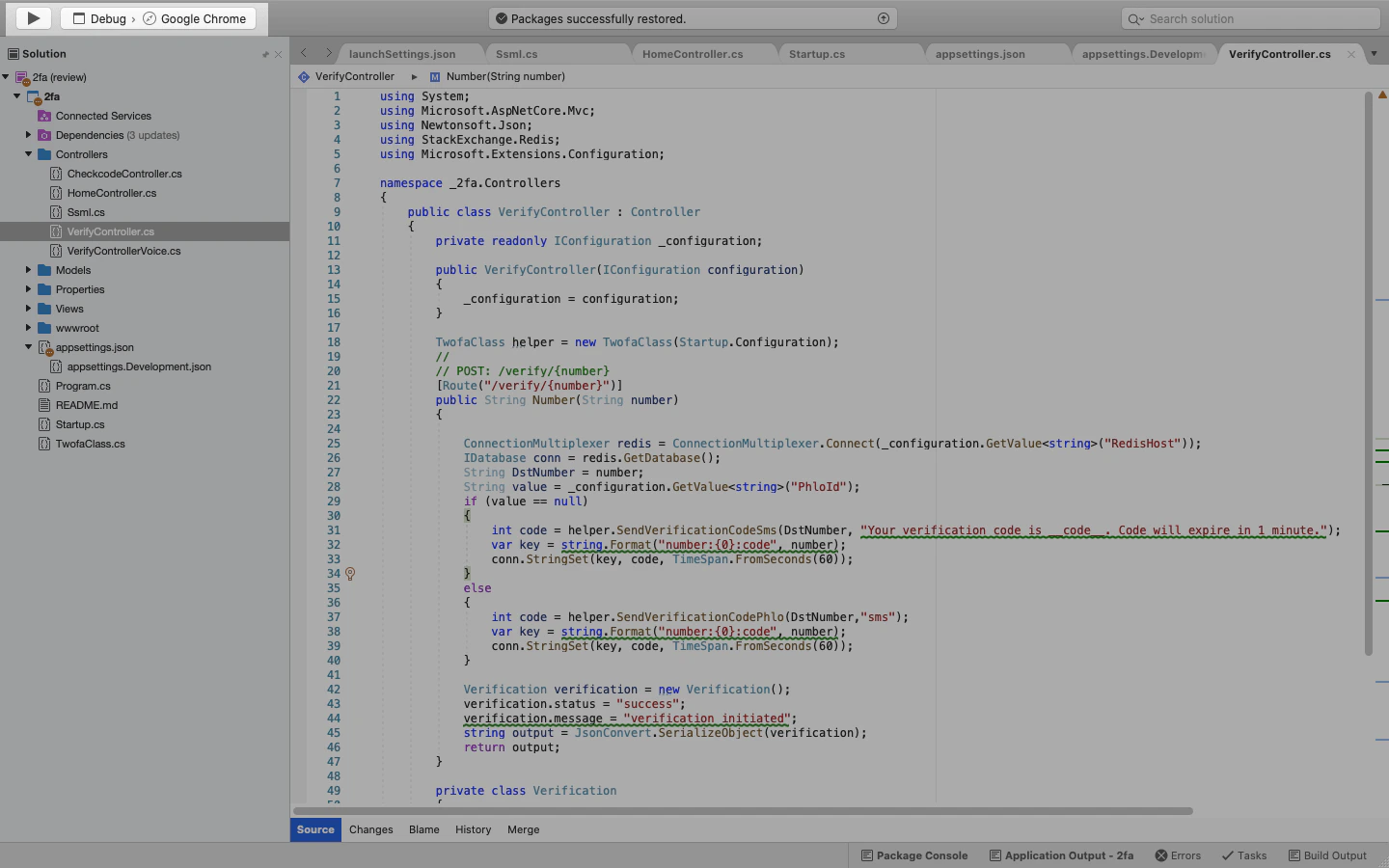
A review of the code
Let‘s walk through what the code does.Step 1: Generate the OTP
Use the Time-Based OTP algorithm to generate a random six-digit one-time password (OTP).Step 2: Send an SMS message with the OTP
Send an SMS message with the OTP to the user’s registered mobile number using Plivo’s Send Message API.Failover: Make a phone call with the OTP
If the SMS message doesn’t reach the mobile device, the user can request a voice OTP.Step 3: Verify the OTP
Verify the OTP the user entered on their handset.Test
To test the application, start the Redis server.