

Business Hours help you control when human agents are available for conversations and how your flows behave during and outside of working hours. By defining working time windows and linking them to holiday calendars, you can ensure timely support, accurate agent availability, and context-aware automation.Documentation Index
Fetch the complete documentation index at: https://plivo.com/docs/llms.txt
Use this file to discover all available pages before exploring further.
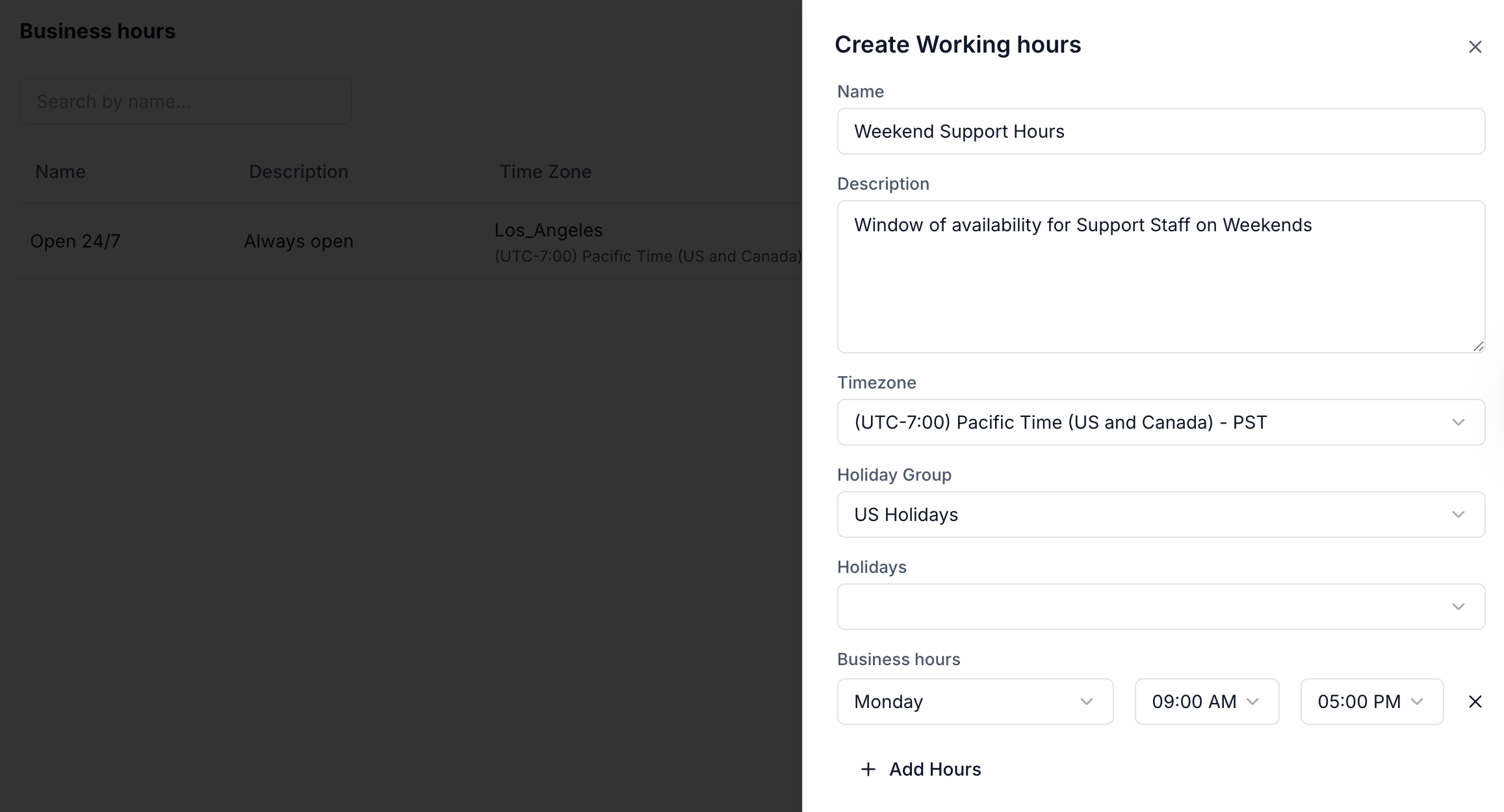
Feature Overview
Use Business Hours to:- Set operating schedules for support teams across timezones.
- Automatically adjust routing logic based on working days and hours.
- Respect national holidays by linking to predefined Holiday Groups.
- Create time-based rules in your flows using the Business Hours node.
Defining Business Hours
| Setting | Description |
|---|---|
| Name & Description | Identify the purpose of each business hour configuration. |
| Timezone | Aligns schedules with team or office location. |
| Holiday Group | Skips agent availability on configured holidays. |
| Daily Hours | Define start and end times per day; supports multiple time slots. |
| Priority Ordering | When multiple business hours overlap, Plivo uses the topmost match to evaluate routing. |
Business Hours Node (Flow Integration)
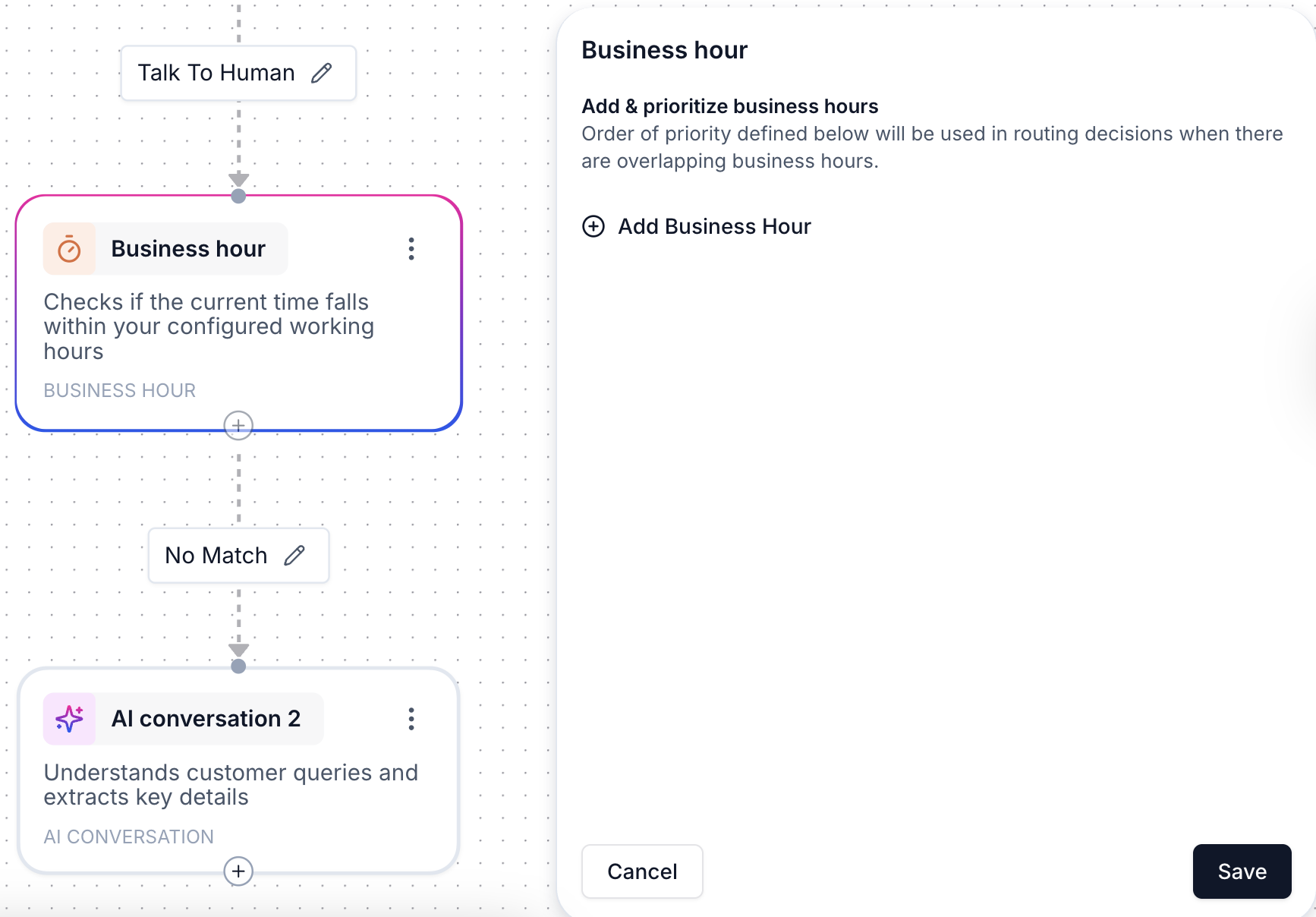
- If the condition is met, the flow continues down the “open” path.
- Otherwise, it can route to after-hours automation, fallback queues, or task creation.
- Live agent handoff only during business hours
- Custom offline messaging
- Deferred handling via tasks or follow-up alerts
Example
You create a “US Business Hours” schedule for 9 AM – 5 PM (IST), Monday to Friday.In your agent flow:
- The Business Hours node checks if it’s within this window.
- If true, the user is routed to a live agent queue.
- If false, the user receives a message like “Our team is offline right now—we’ll get back to you soon.”