> ## Documentation Index
> Fetch the complete documentation index at: https://plivo.com/docs/llms.txt
> Use this file to discover all available pages before exploring further.
# Build an App That Makes Phone Calls from Raspberry Pi
> Build a Raspberry Pi app that makes voice calls using Plivo's API
This project was contributed by Andy Fundinger, a professional Python developer and trainer. Andy built this integration as a way to teach his students how to make calls to their mothers on Mother's Day, using Plivo and a keypad attached to a Raspberry Pi.
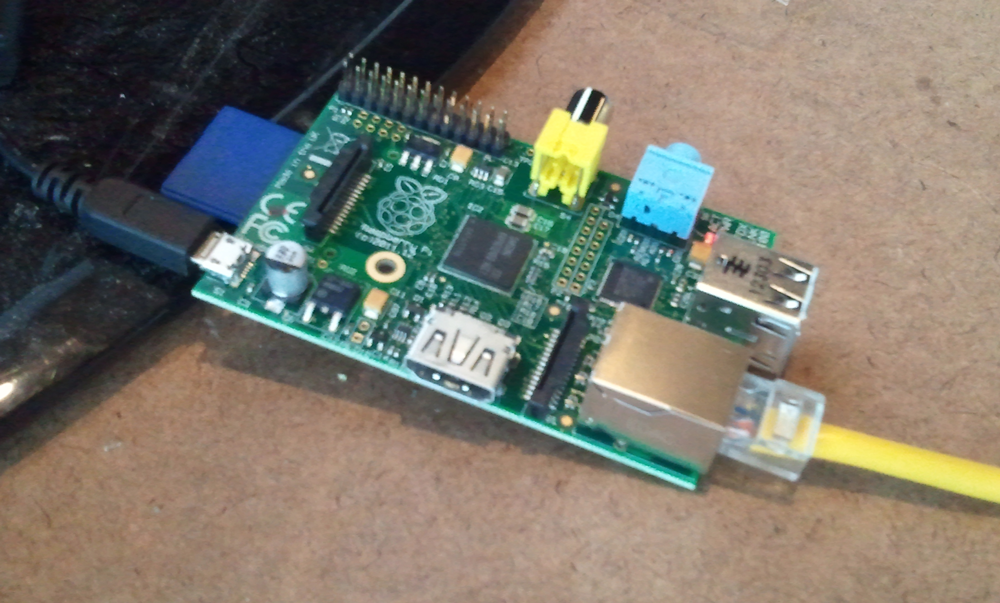 [Raspberry Pi](https://www.raspberrypi.org/documentation/faqs/) is a single-board computer that comes with
* A Linux-based operating system
* 700 MHz ARM11 CPU
* 256MB (or 512MB) RAM
* SD card storage
* 2 USB ports
* Composite and HDMI video out
* Stereo audio out
* 8 GPIO pins
* Wired Ethernet
## Build a Raspberry Pi call button
#### 1. RasPi Circuit Diagram and inputs flow via GPIO
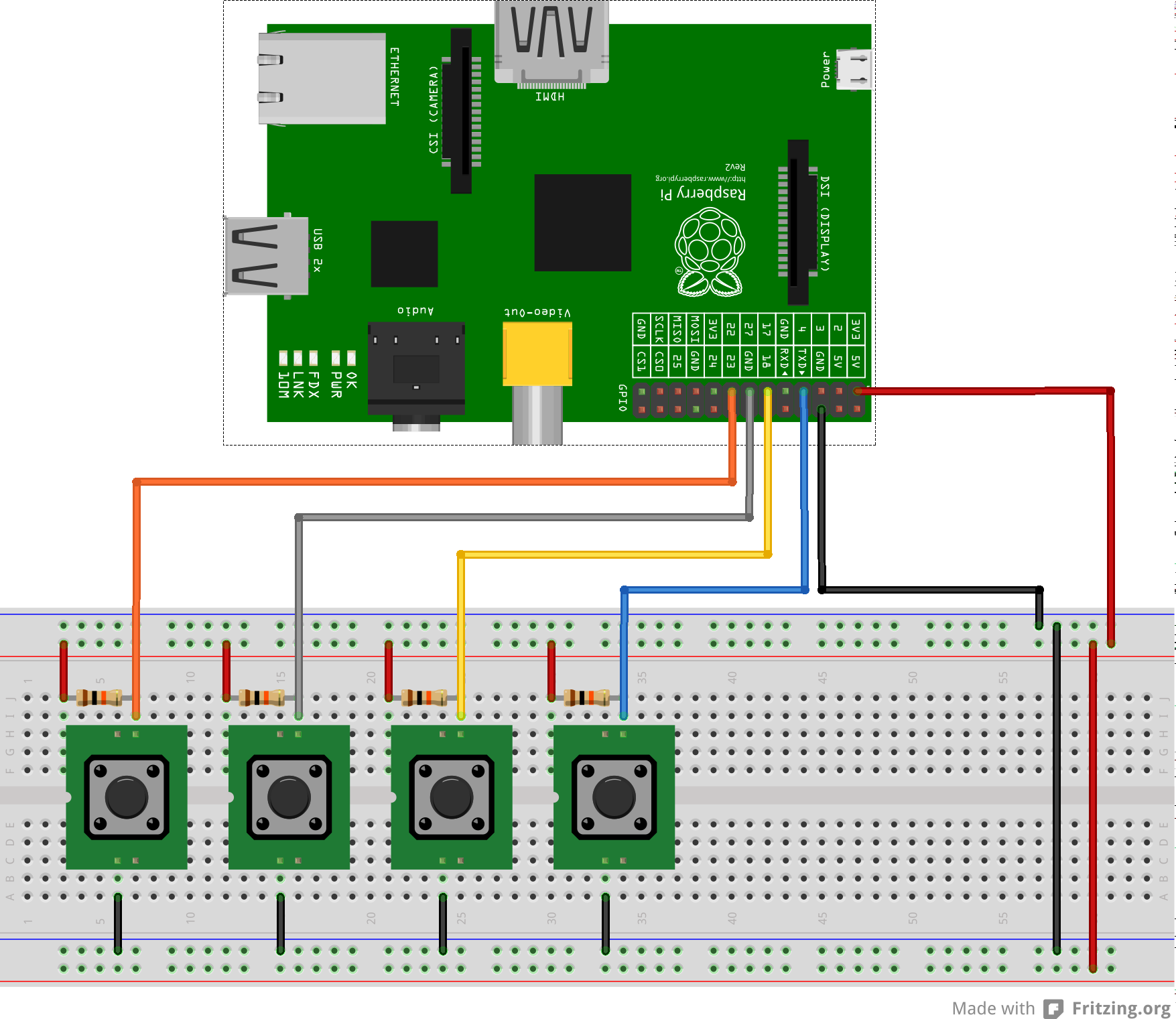
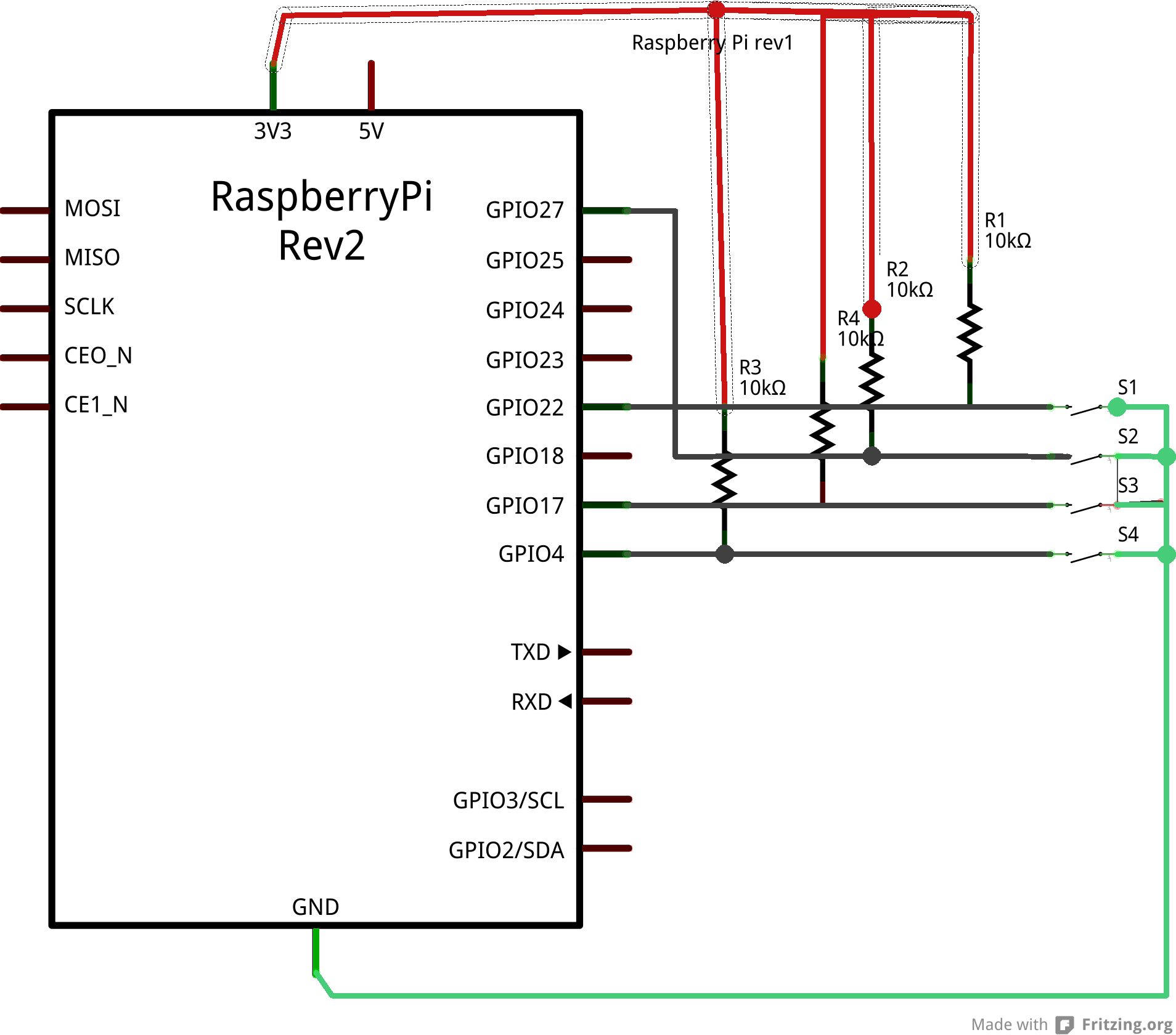
I hooked up a four-button keypad to four of the Raspberry Pi GPIO pins as inputs, then run a continuous loop to check whether the buttons have been pushed.
Circuit diagram #1
[Raspberry Pi](https://www.raspberrypi.org/documentation/faqs/) is a single-board computer that comes with
* A Linux-based operating system
* 700 MHz ARM11 CPU
* 256MB (or 512MB) RAM
* SD card storage
* 2 USB ports
* Composite and HDMI video out
* Stereo audio out
* 8 GPIO pins
* Wired Ethernet
## Build a Raspberry Pi call button
#### 1. RasPi Circuit Diagram and inputs flow via GPIO
I hooked up a four-button keypad to four of the Raspberry Pi GPIO pins as inputs, then run a continuous loop to check whether the buttons have been pushed.
Circuit diagram #1
 Circuit diagram #2
 #### 2. Call flow via Plivo Voice API
Plivo normally expects that you’ll be using it for a web app, so I had to fake that somewhat. Rather than building a full web app, I had each student create a single page that had at least the minimum viable XML to dial a specified number in response to the call being answered. We also played with having a little more in that XML file. But basically we told Plivo that it was a web service and Plivo was OK with that.
```py theme={null}
params = {
'from': "14245550100",
'to': '12015550164',
'answer_url':"https://example.com/static/call_mom/answerThenCallMom.xml",
'answer_method': "GET"
}
p.make_call(params)
```
Then you execute a script that makes an HTTP GET request for “answerThenCallMom.xml", which could be as simple as:
```xml theme={null}
14245550100
```
Get the code for [my Raspberry Pi project on GitHub](https://github.com/Ciemaar/RaspberryPython-CallMom).
Contributed by Andy Fundinger
#### 2. Call flow via Plivo Voice API
Plivo normally expects that you’ll be using it for a web app, so I had to fake that somewhat. Rather than building a full web app, I had each student create a single page that had at least the minimum viable XML to dial a specified number in response to the call being answered. We also played with having a little more in that XML file. But basically we told Plivo that it was a web service and Plivo was OK with that.
```py theme={null}
params = {
'from': "14245550100",
'to': '12015550164',
'answer_url':"https://example.com/static/call_mom/answerThenCallMom.xml",
'answer_method': "GET"
}
p.make_call(params)
```
Then you execute a script that makes an HTTP GET request for “answerThenCallMom.xml", which could be as simple as:
```xml theme={null}
14245550100
```
Get the code for [my Raspberry Pi project on GitHub](https://github.com/Ciemaar/RaspberryPython-CallMom).
Contributed by Andy Fundinger