> ## Documentation Index
> Fetch the complete documentation index at: https://plivo.com/docs/llms.txt
> Use this file to discover all available pages before exploring further.
# Plivo node (send: sms)
> Configure the n8n Plivo node to send SMS weather updates
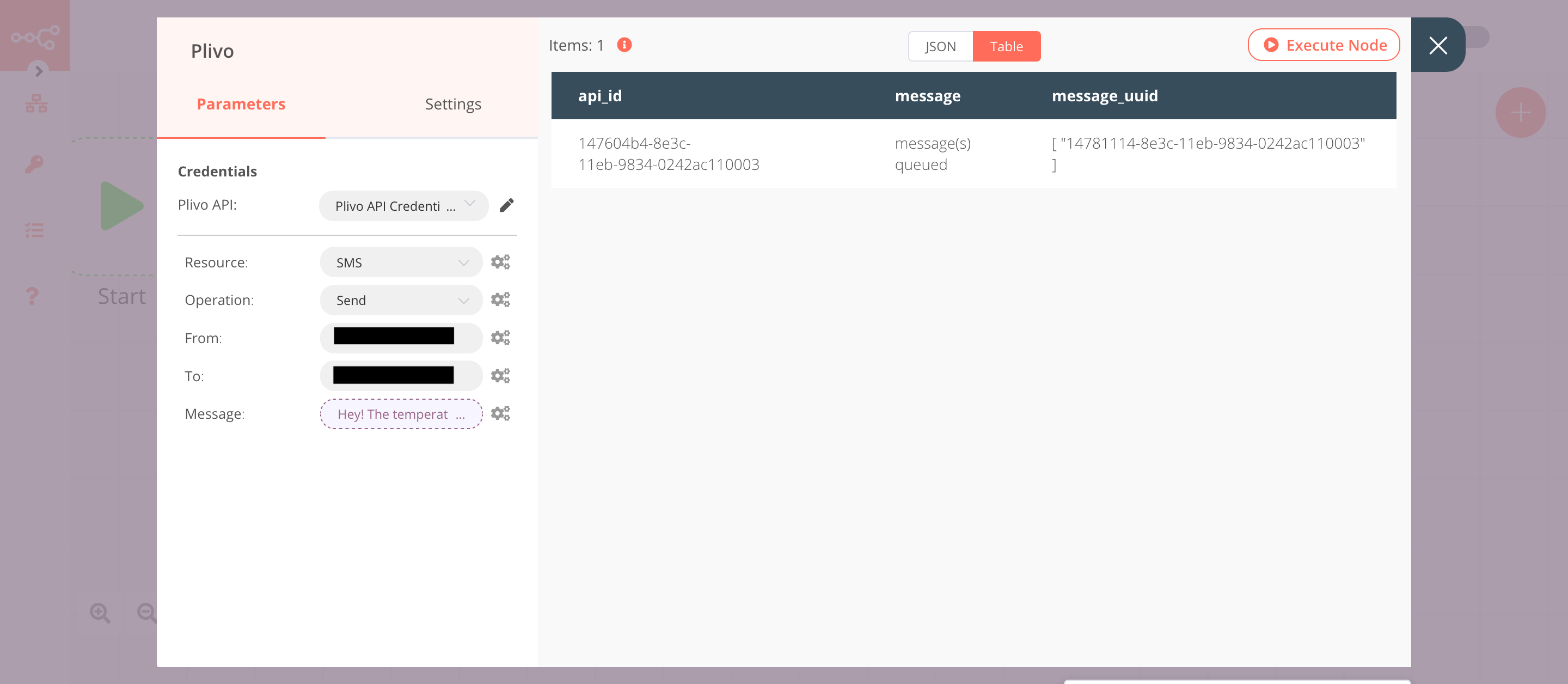
The Plivo node will send an SMS with the weather update, which was sent by the previous node.
1. Enter your Plivo Auth ID and Auth Token.
2. Enter a Plivo phone number in the **From** field.
3. Enter the receiver’s phone number in the **To** field.
4. Click on the gears icon next to the **Message** field and click on **Add Expression**.
5. Enter this message in the **Expression** field: Hey! The temperature outside is `{{$node["OpenWeatherMap"].json["main"]["temp"]}}°C`.
6. Click on **Execute Node** to run the node.
In this screenshot, you can see the node sending an SMS message to the phone number that we specified.
 Save the workflow, then click on the Activate toggle on the top right of the screen to activate it. Your workflow will then be triggered as specified by the settings in the Cron node.