> ## Documentation Index
> Fetch the complete documentation index at: https://plivo.com/docs/llms.txt
> Use this file to discover all available pages before exploring further.
# Set up Plivo in EngageBay
> Configure your Plivo credentials in the EngageBay dashboard
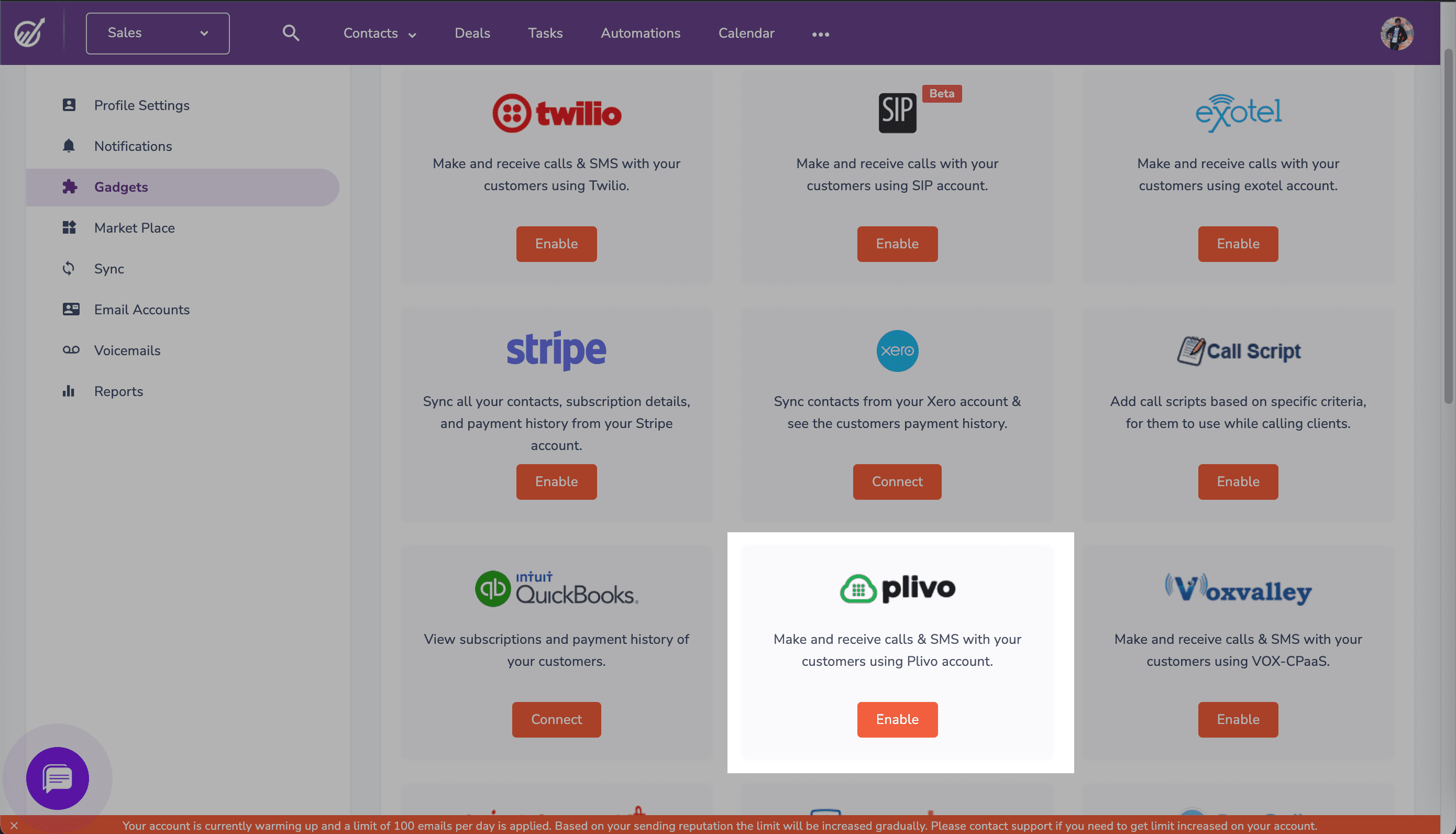
To get started, log in to the EngageBay dashboard, click on the Profile drop-down at the top right, then Preferences > Gadgets > Plivo (click **Enable**).
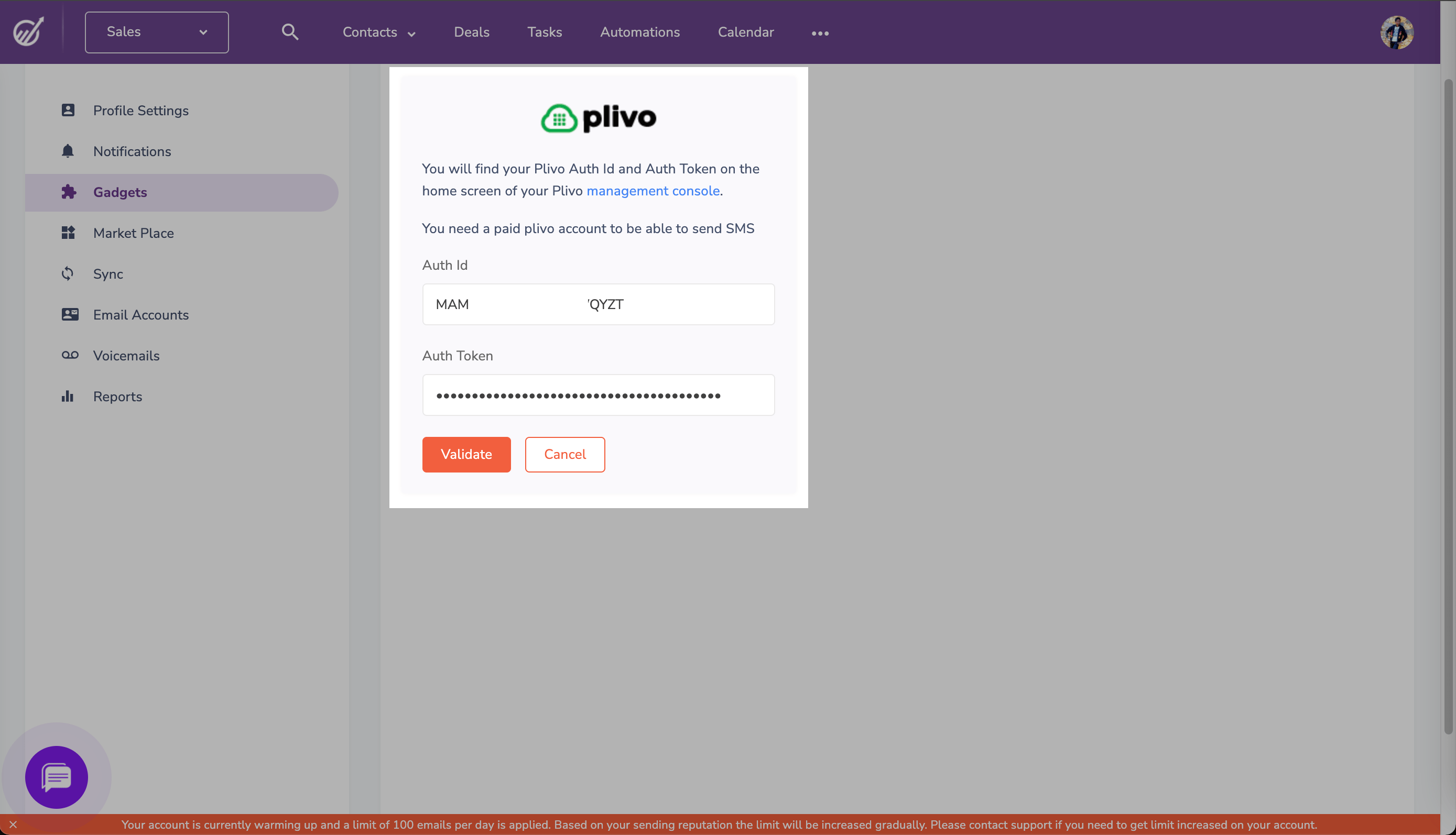
 Enter your Plivo Auth ID and Auth Token, which you can find on the overview page of the [Plivo console](https://cx.plivo.com/home), and click **Validate**.
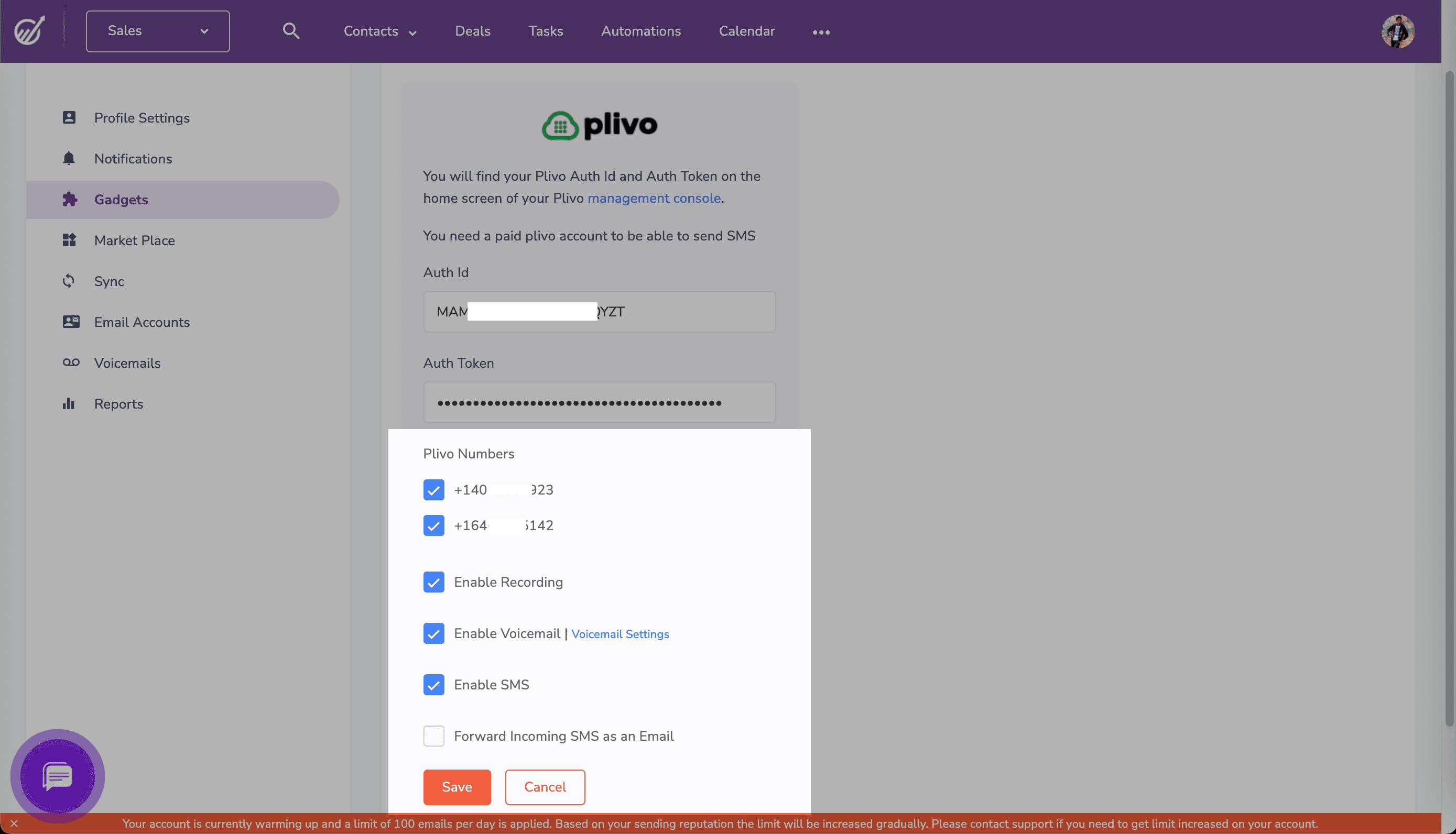
 Once you validate your credentials, the next screen will prompt you to choose the Plivo phone numbers you want to enable on EngageBay. Choose the options you want and click **Save**.
 Now you can use your Plivo number within EngageBay to send SMS messages and make voice calls.