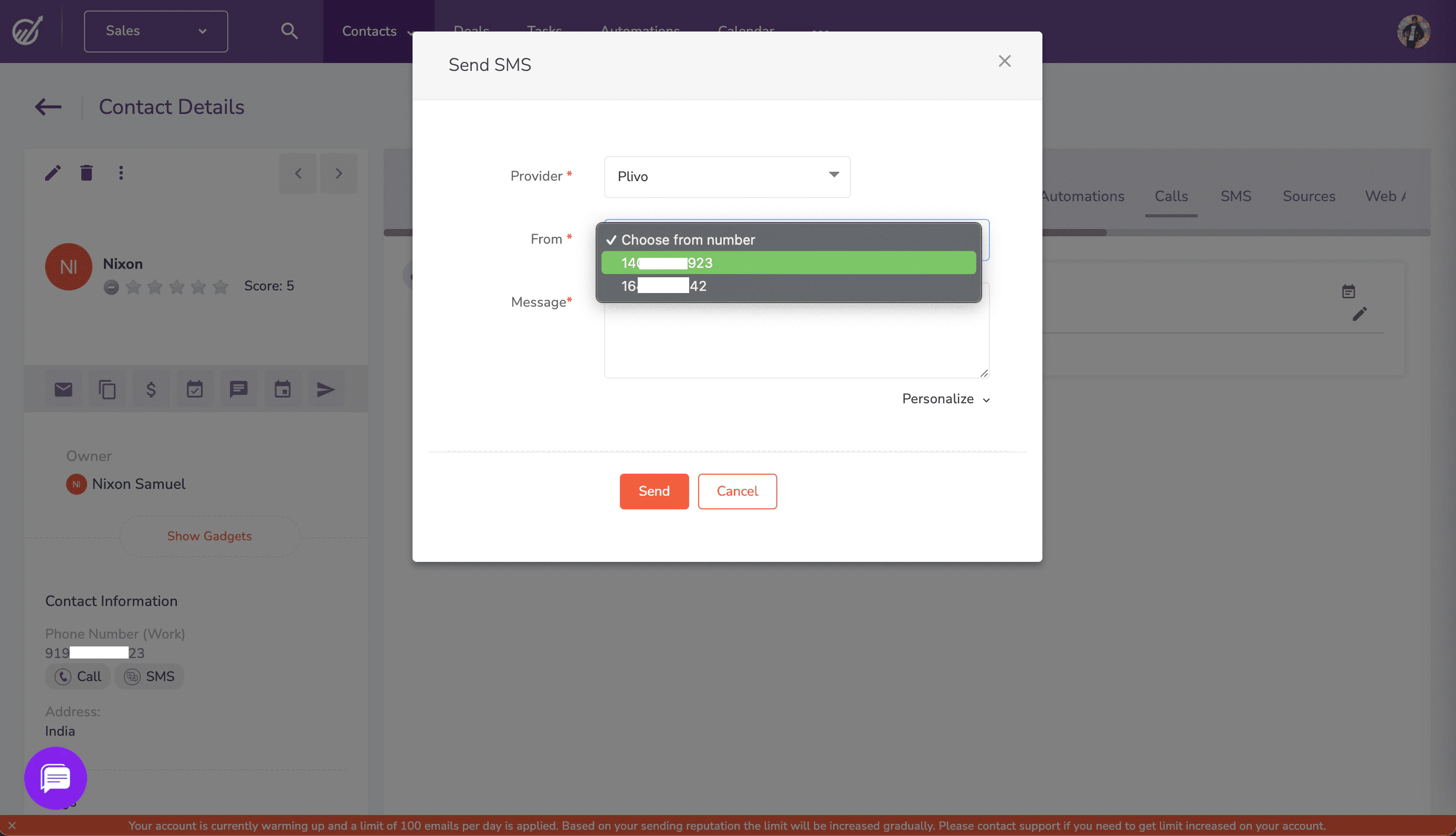
> ## Documentation Index
> Fetch the complete documentation index at: https://plivo.com/docs/llms.txt
> Use this file to discover all available pages before exploring further.
# Send SMS messages using Plivo
> Send text messages to EngageBay contacts using Plivo SMS
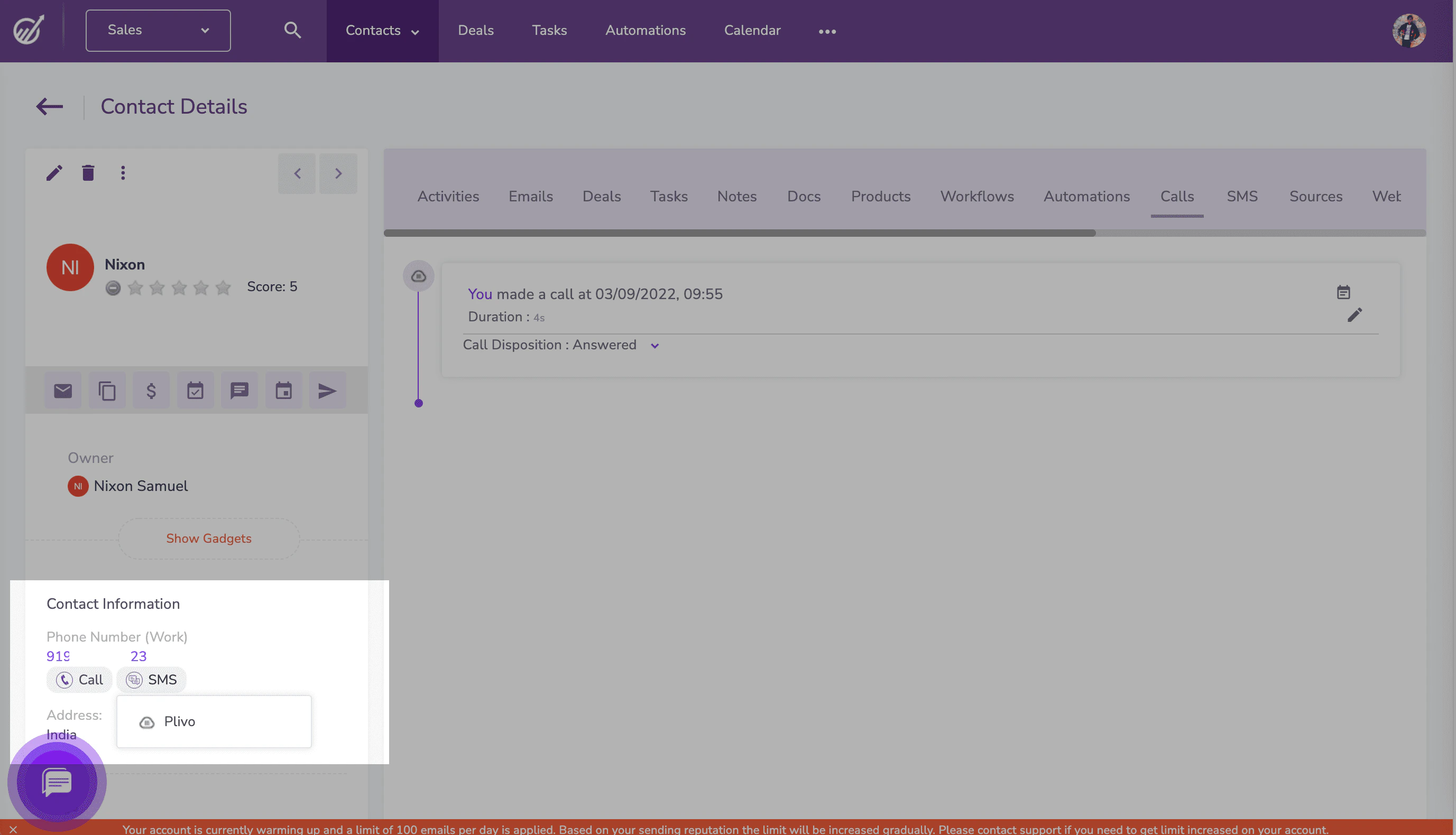
To send a text message, navigate to the contact you want to send a message to. Under the phone number in the left pane click **SMS**, then select Plivo from the drop-down menu.
 A pop-up appears that prompts for the From number and message text you want to use. Fill in the details, then click **Send**. EngageBay will send the message to the contact’s phone number using Plivo as the SMS provider in the background.