> ## Documentation Index
> Fetch the complete documentation index at: https://plivo.com/docs/llms.txt
> Use this file to discover all available pages before exploring further.
# Make calls using Plivo
> Place voice calls to EngageBay contacts using Plivo
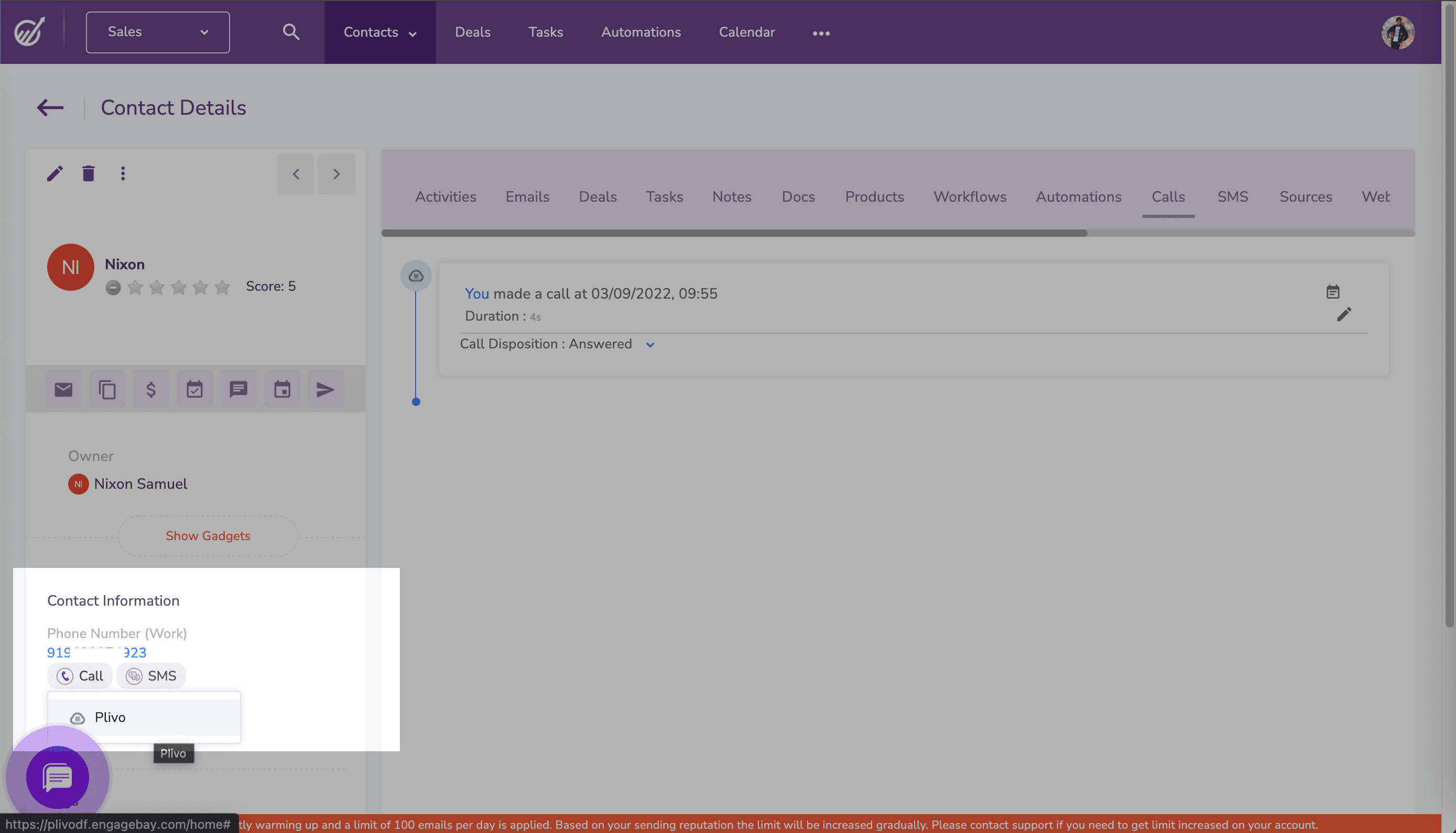
To make a call, navigate to the contact you want to call to. Under the phone number in the left pane click **Call**, then select Plivo from the drop-down menu.
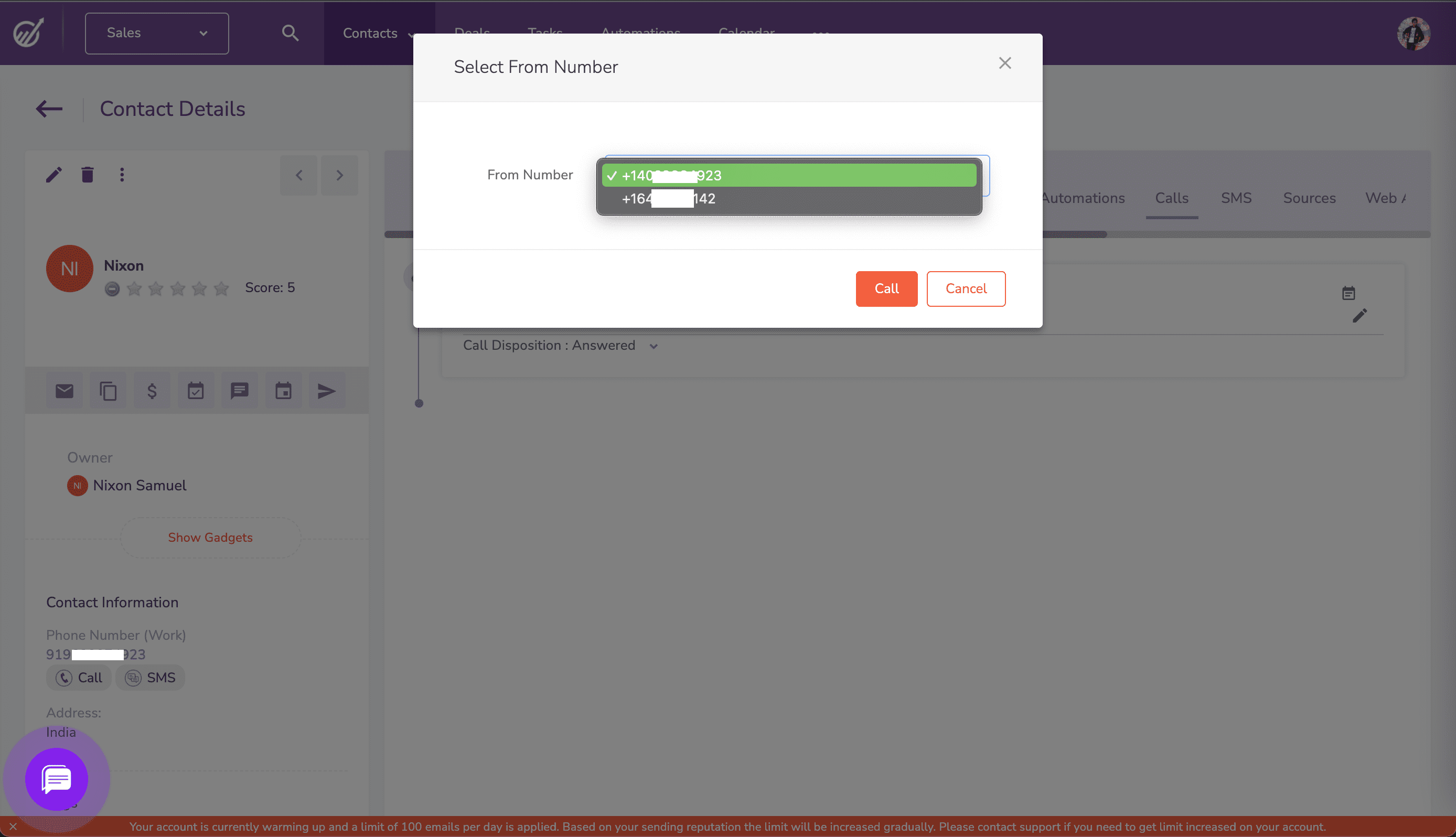
 You’ll be asked to choose one of the Plivo numbers as the caller ID for the call. Once you select the phone number, EngageBay will call the contact’s phone number using Plivo as the voice provider in the background.