> ## Documentation Index
> Fetch the complete documentation index at: https://plivo.com/docs/llms.txt
> Use this file to discover all available pages before exploring further.
# Test MFA flow
> Verify your Plivo SMS MFA integration works in Auth0
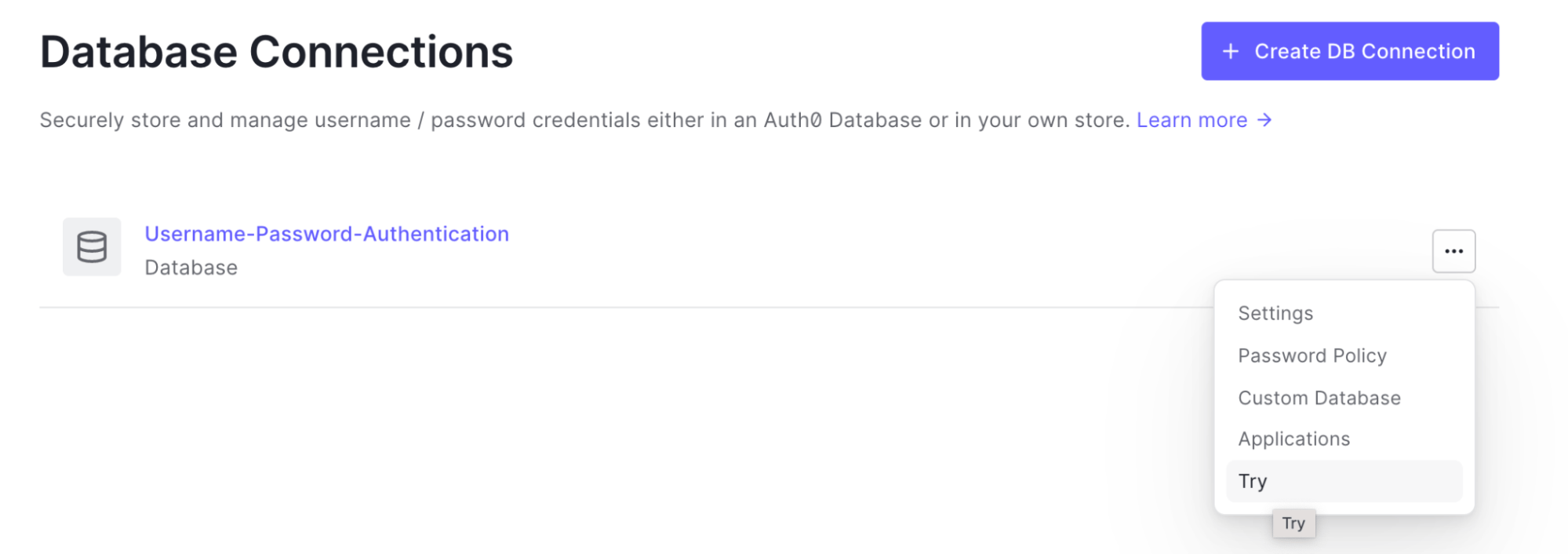
Navigate to the Authentication section in the Auth0 Manage Dashboard, choose your Connection, then select **Try** from the connection’s dropdown menu to verify that everything works as intended.
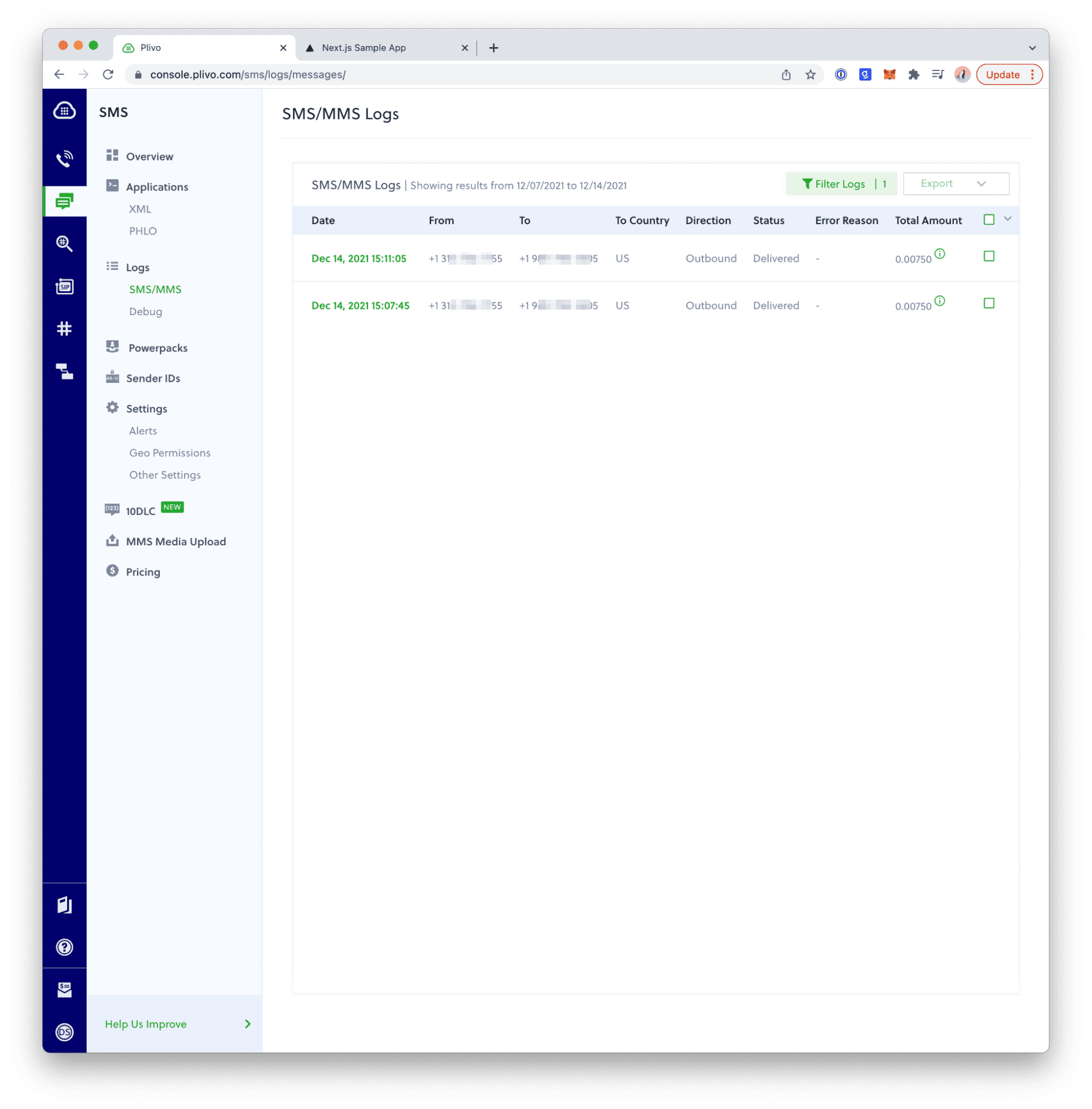
 You can then log into your Plivo account to verify that SMS messages are indeed being sent.
 If you don’t receive an SMS message as expected, look in your [tenant logs](https://auth0.com/docs/logs) for a failed Phone Message log entry. To learn which event types to search, see the [Log Event Type Code list](https://auth0.com/docs/logs/log-event-type-codes). You can use the Filter control to find MFA errors.
Make sure that:
* The Action is in the Send Phone Message flow.
* The secrets are the same Plivo Auth ID and Auth Token you created when you added the Action.
* Your Plivo account is active (not suspended).
* Your phone number is formatted in [E.164 format](https://en.wikipedia.org/wiki/E.164).
If you don’t receive an SMS message as expected, look in your [tenant logs](https://auth0.com/docs/logs) for a failed Phone Message log entry. To learn which event types to search, see the [Log Event Type Code list](https://auth0.com/docs/logs/log-event-type-codes). You can use the Filter control to find MFA errors.
Make sure that:
* The Action is in the Send Phone Message flow.
* The secrets are the same Plivo Auth ID and Auth Token you created when you added the Action.
* Your Plivo account is active (not suspended).
* Your phone number is formatted in [E.164 format](https://en.wikipedia.org/wiki/E.164).