> ## Documentation Index
> Fetch the complete documentation index at: https://plivo.com/docs/llms.txt
> Use this file to discover all available pages before exploring further.
# Add the Action
> Add a Plivo SMS Action to your Auth0 authentication flow
To integrate Auth0, first [sign up](https://auth0.com/signup) for an account. Add an [Action](https://auth0.com/docs/actions) (a triggerable function), then integrate it with your authentication flow.
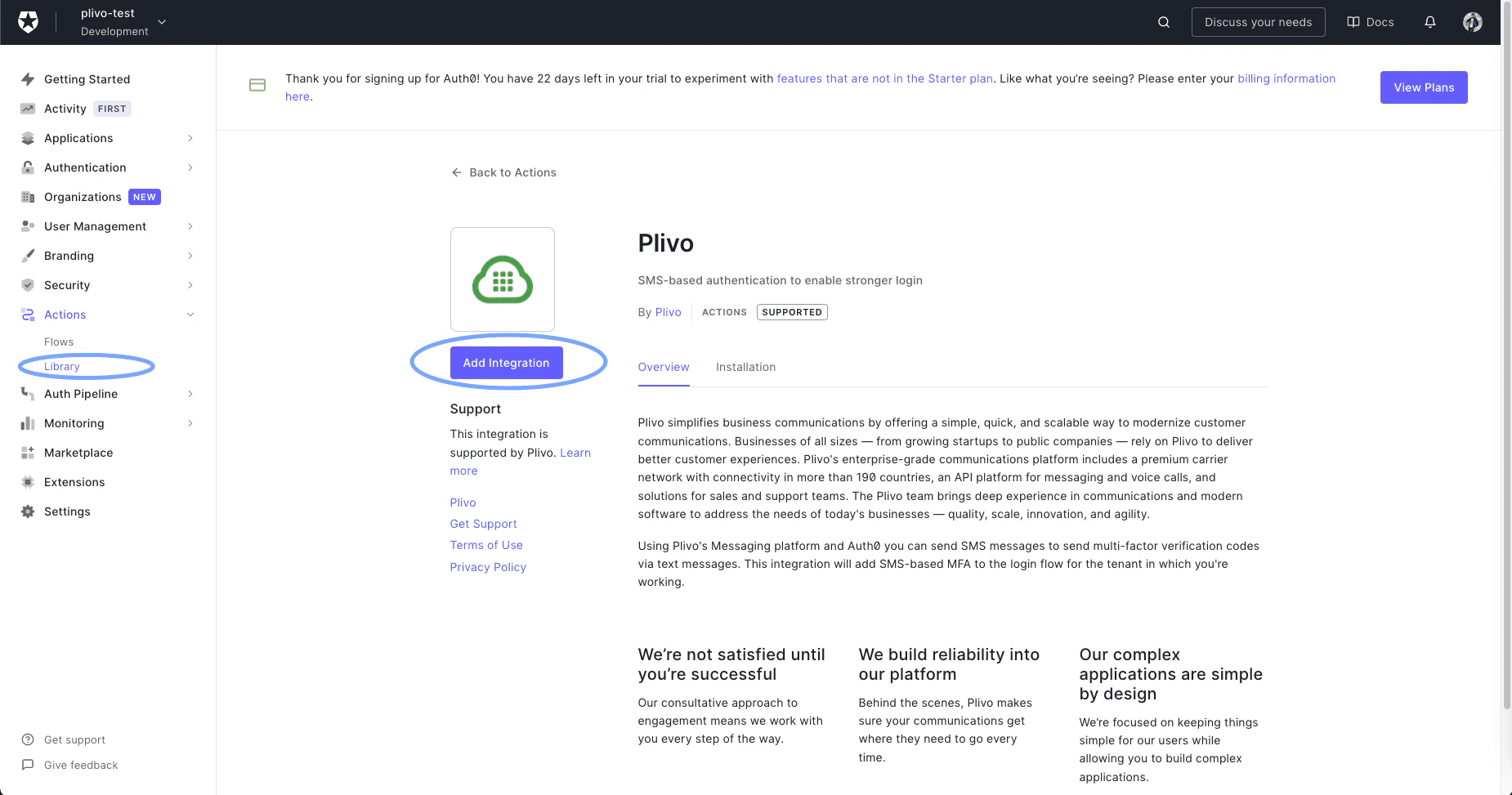
* Go to Actions > Library and select Add Integration.
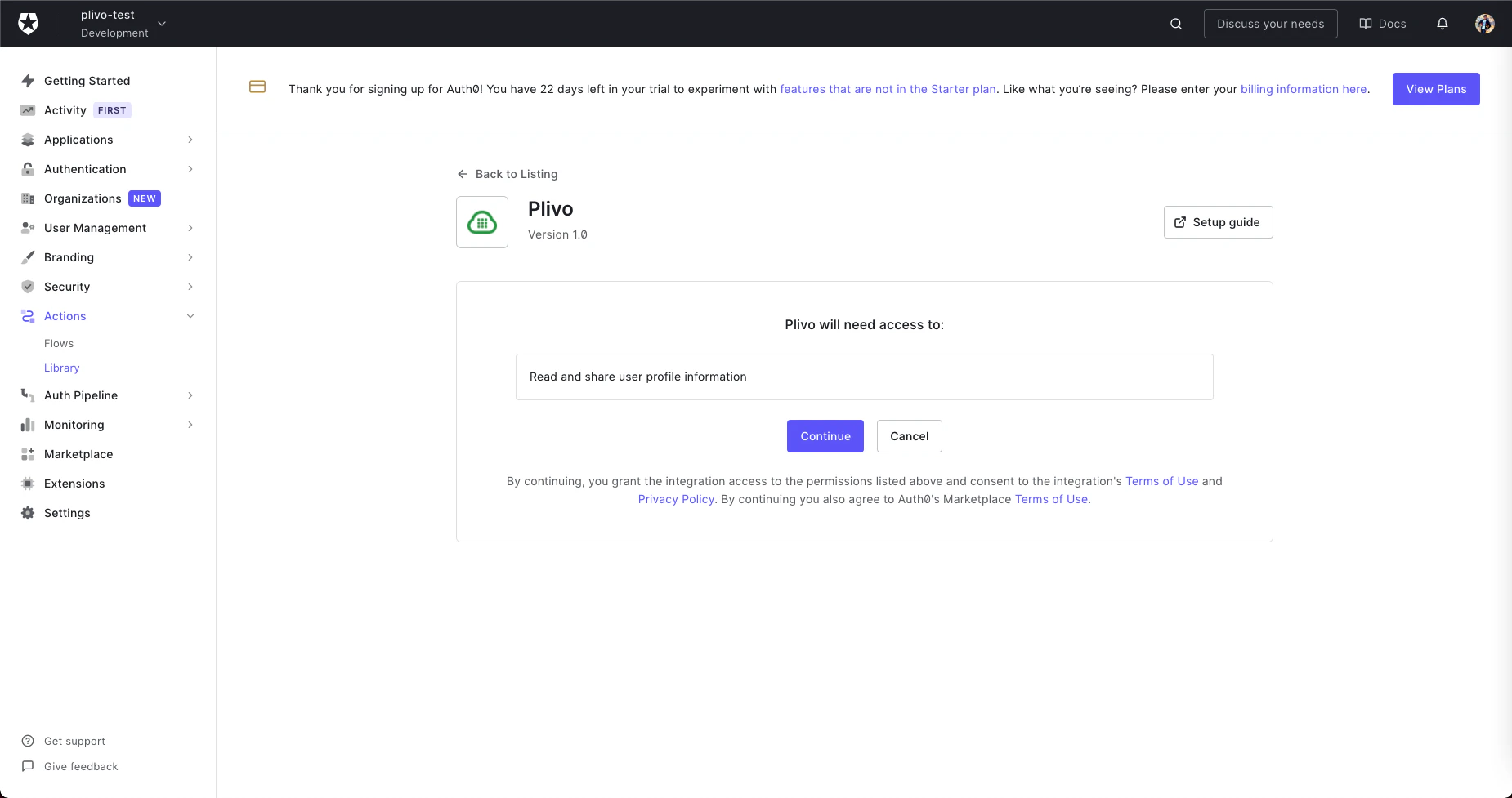
 * Read the necessary access requirements and click **Continue**.
 * Configure the integration by filling in the fields on the next screen with your Plivo Auth ID and Auth Token and your Plivo phone number.
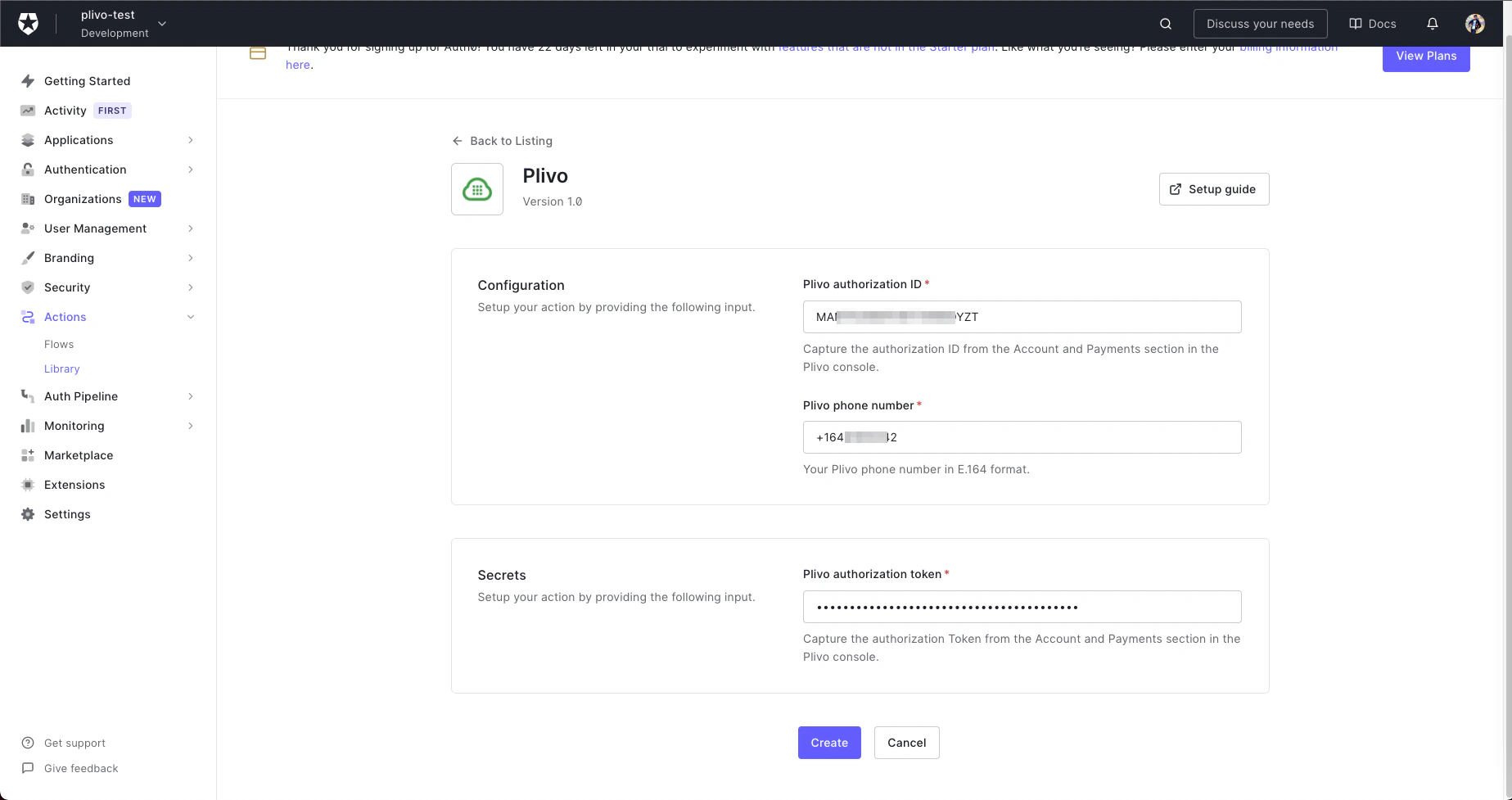 * Click **Create** to add the integration to your library.
* Click the **Add to flow** link on the pop-up that appears.
* Click **Create** to add the integration to your library.
* Click the **Add to flow** link on the pop-up that appears.
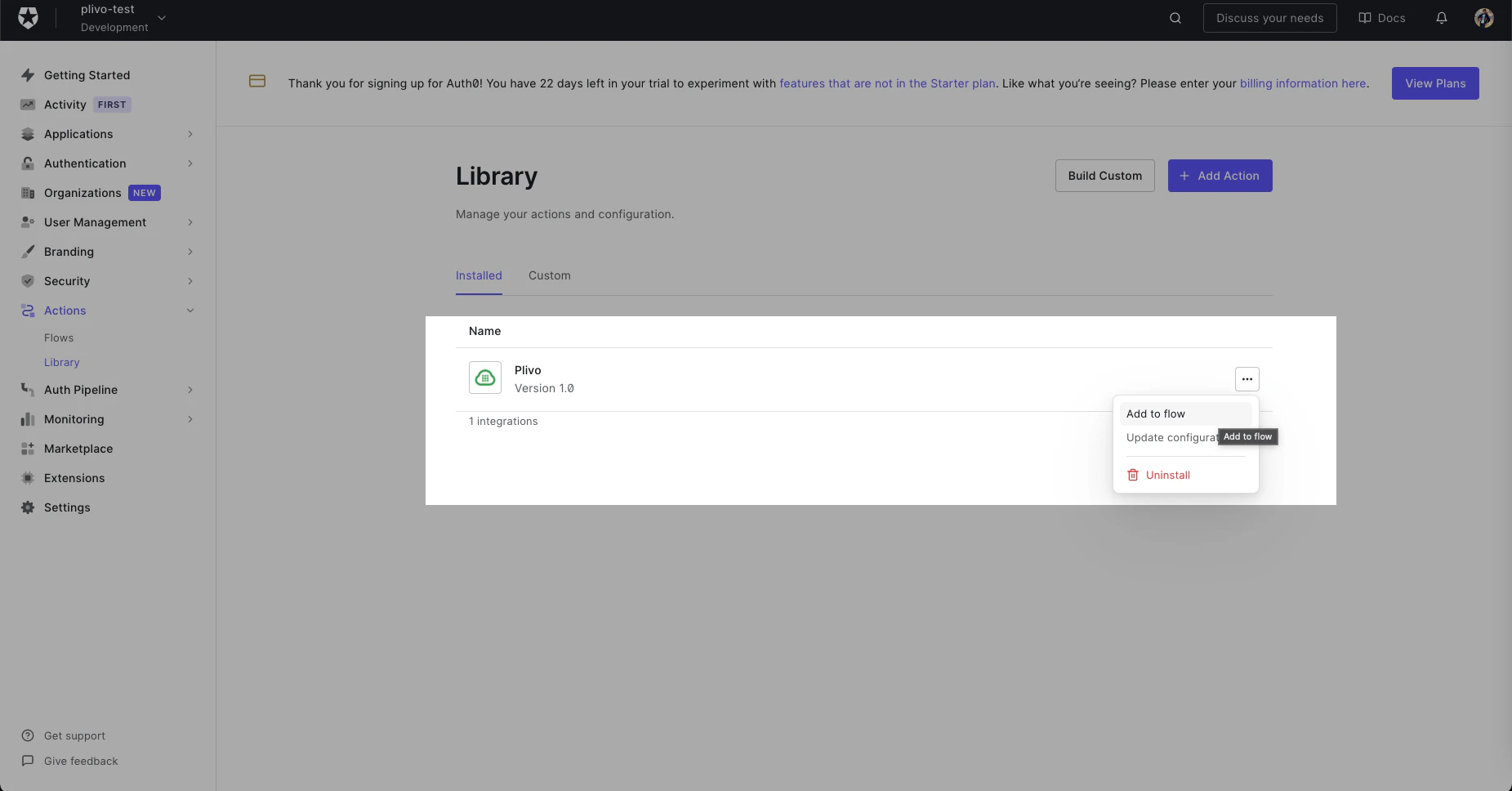 * Drag the Action into the flow.
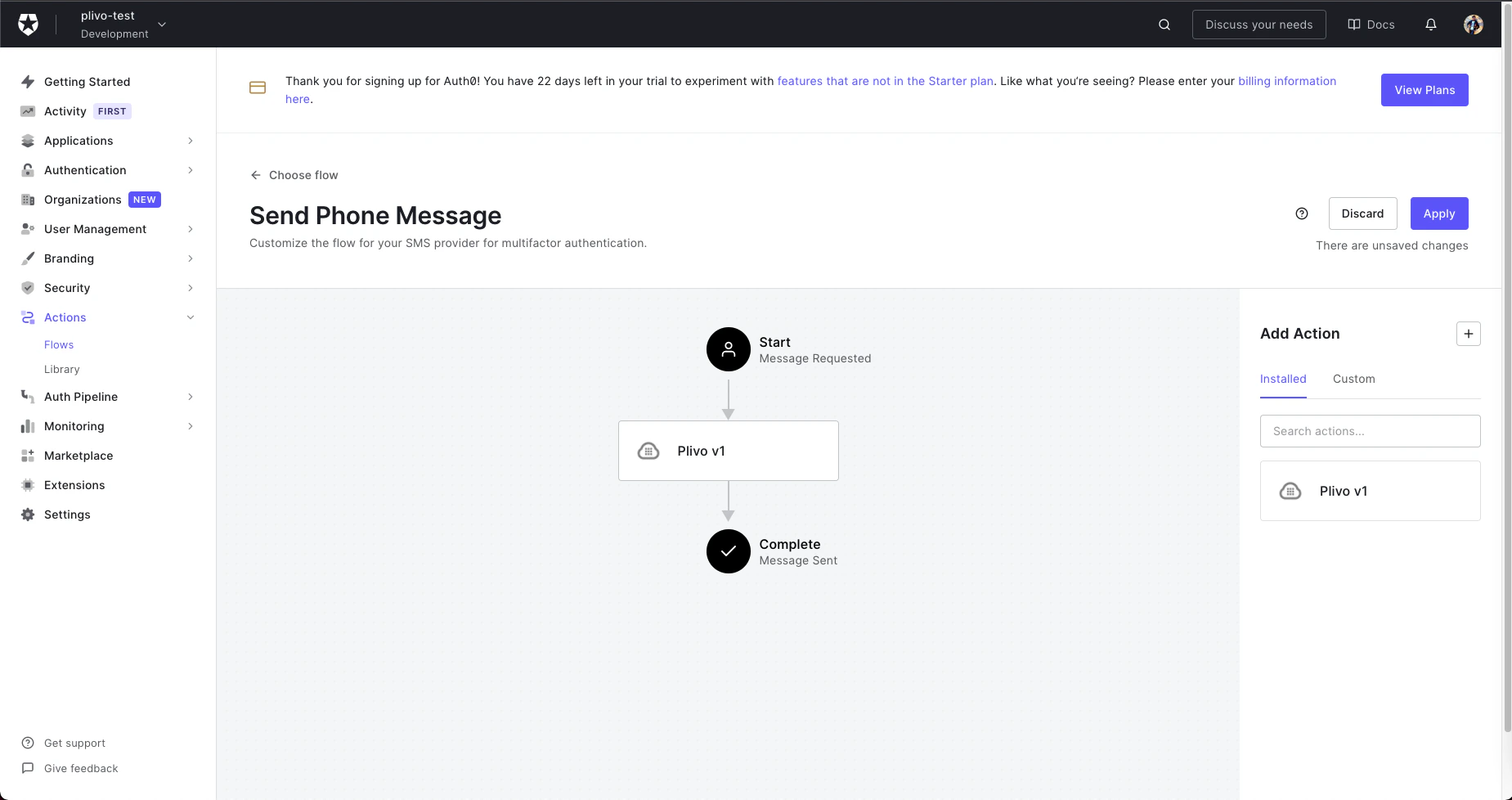 * Click Apply Changes. Now this flow will use the Plivo integration to send an SMS message whenever it’s called.