> ## Documentation Index
> Fetch the complete documentation index at: https://plivo.com/docs/llms.txt
> Use this file to discover all available pages before exploring further.
# Acitvatec custom SMS factor
> Activate custom SMS as an MFA factor in Auth0 using Plivo
Before you can use SMS as an authentication factor, your Auth0 tenant needs to have [MFA enabled globally](https://auth0.com/docs/login/mfa/enable-mfa) or [for specific contexts](https://auth0.com/docs/login/mfa/customize-mfa-user-pages). You can then configure the SMS factor to use your custom code.
Go to [Dashboard > Security > Multi-factor Auth](https://manage.auth0.com/select-tenant?path=/mfa) and click the Phone Message factor box. In the modal that appears, select Custom for the delivery provider, make any adjustments you’d like to the templates, then click Save and close the modal. Finally, enable the SMS factor using the toggle switch.
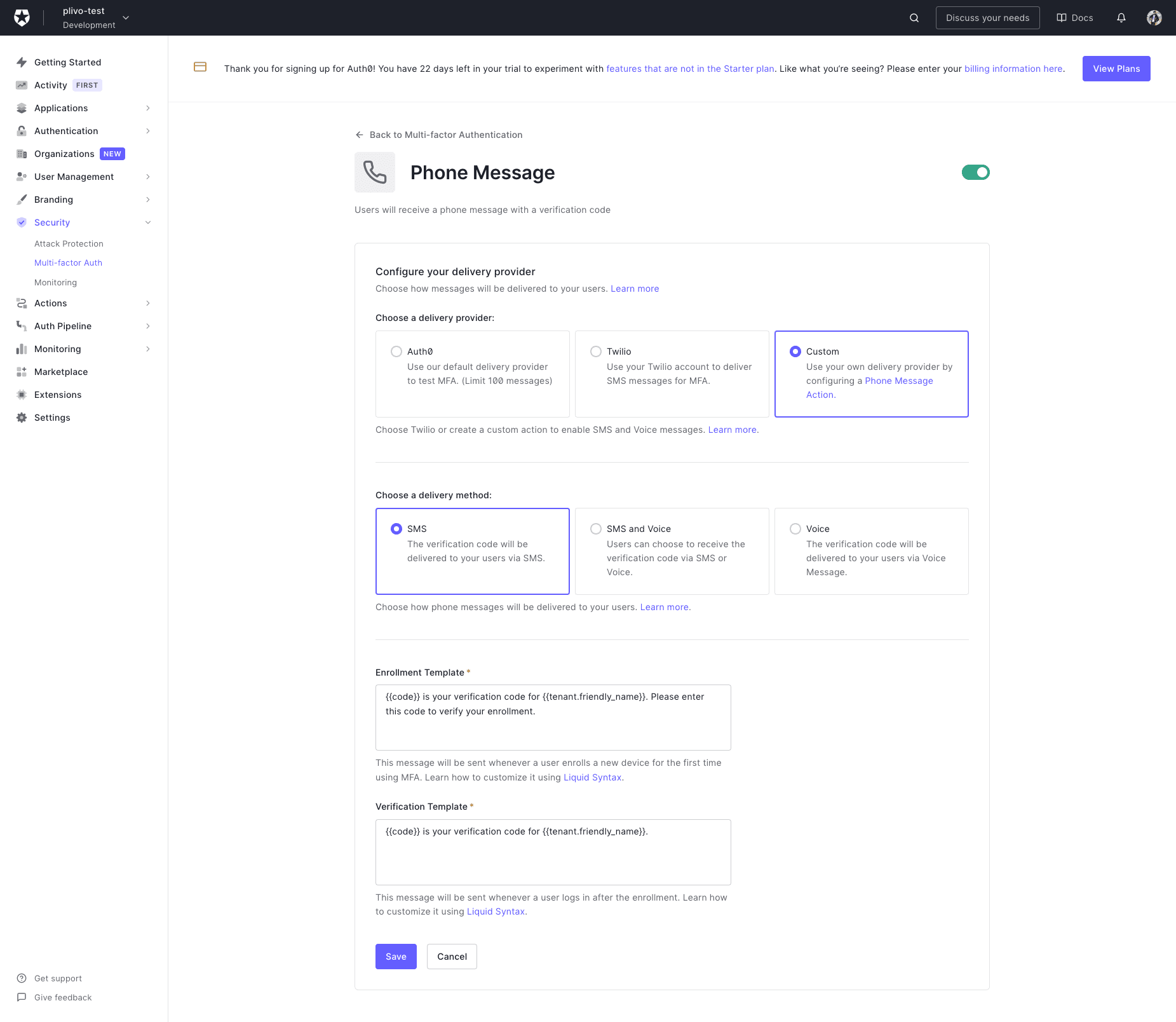 Auth0 will immediately begin using this factor for MFA during login. Before you activate your integration in production, make sure you’ve configured all of the components correctly and verified everything on a [test tenant](https://auth0.com/docs/dev-lifecycle/set-up-multiple-environments).